What happens when you swap a bowling ball for a car? That was the question behind my latest project: a series of short videos where real vehicles roll down a lane inside a giant stadium and smash into the pins.
I didn’t shoot a single frame of it, and I didn’t rely on AI alone either. The whole thing came out of a hybrid pipeline: 3ds Max for control, AI for realism and motion, and Photoshop, CorelDRAW and After Effects to hold it all together. In this post I’ll walk you through exactly how I built it, step by step, so you can borrow the parts that fit your own work..
One of the finished shots. Everything below explains how it was made.
Why I started in 3ds Max, not in a prompt box
If you’ve tried to build a consistent scene with prompts alone, you know the problem. Every generation moves the camera a little, changes the lighting, adds a staircase that wasn’t there before. For a single image that’s fine. For a sequence of shots that need to cut together, it’s a nightmare.
So I flipped the usual order. Instead of asking AI to invent the scene, I built the scene myself first and asked AI to make it beautiful. 3ds Max gave me the things AI is bad at: fixed camera angles, correct scale, a lane that stays the same length in every shot. AI gave me the things that would take weeks to model and render by hand: realistic materials, crowds, lighting and believable motion.
Step 1: Block out the scene in 3ds Max
I started by modeling the stadium and the vehicles in 3ds Max, but in a very simple form. No detailed textures, no fancy materials, no heavy lighting setup. Think of it as a 3D sketch: the bowling lane, the pins, the stands around it and rough versions of each car.
The goal at this stage is composition, not polish. I set up my camera angles, checked the proportions between the cars and the pins, and rendered clean, basic frames. These simple renders became the skeleton of everything that followed. Because they all came from the same 3D scene, every shot already shared the same geometry and perspective.
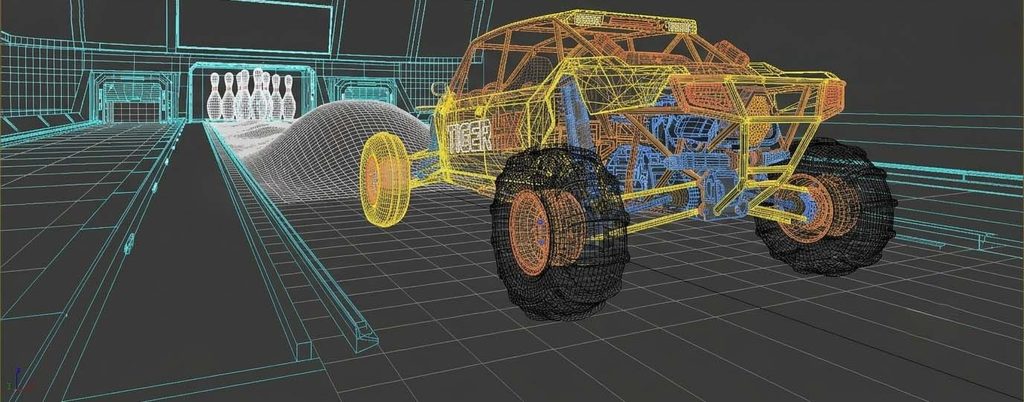
A simple 3ds Max render: no textures, just form, scale and camera angle.
Step 2: Turn simple renders into a real stadium
Next, I fed those basic renders into AI image generators and described the stadium I had in mind: the atmosphere, the lighting, the materials, the crowd. The AI kept my layout and camera angle and painted a realistic world on top of it.
I used two models for two different jobs:
- Gemini for the first concept images, when I was still exploring the look and mood of the stadium.
- GPT-5 for the final reference images, where I needed more control and consistency across shots.
No AI output went straight into production. Every image went through Photoshop, where I fixed details, cleaned up artifacts and made sure the cars, lane and stands matched from frame to frame. This manual pass is small, but it’s what separates a usable reference from a lucky generation.
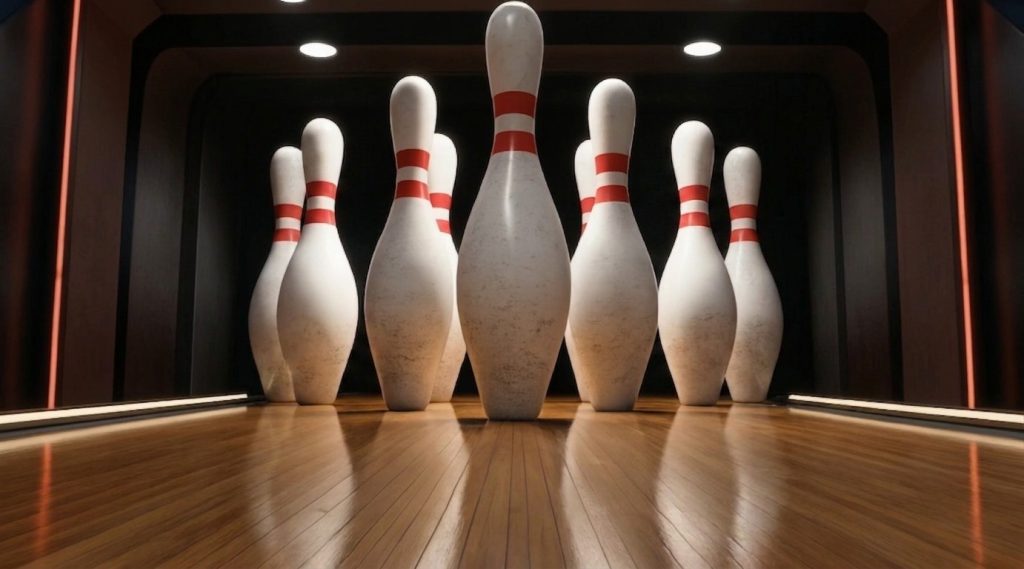
A reference frame for the pin deck, refined in Photoshop before animation.
Step 3: Swap the cars and bring each shot to life
With the stadium locked, the storytelling started. Each scenario called for a different vehicle on the lane, so I replaced the car in the scene with the next one while keeping everything else the same. Same lane, same camera, same light. Only the “ball” changed.
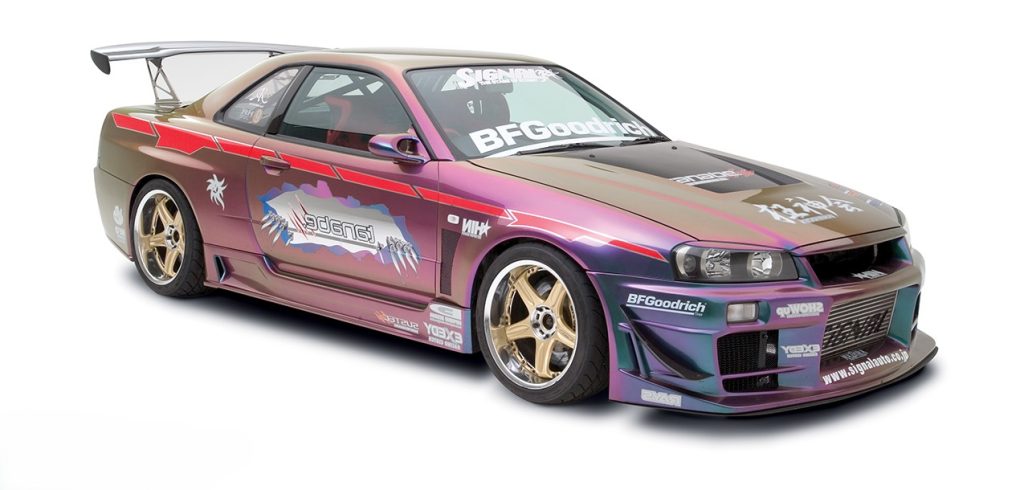
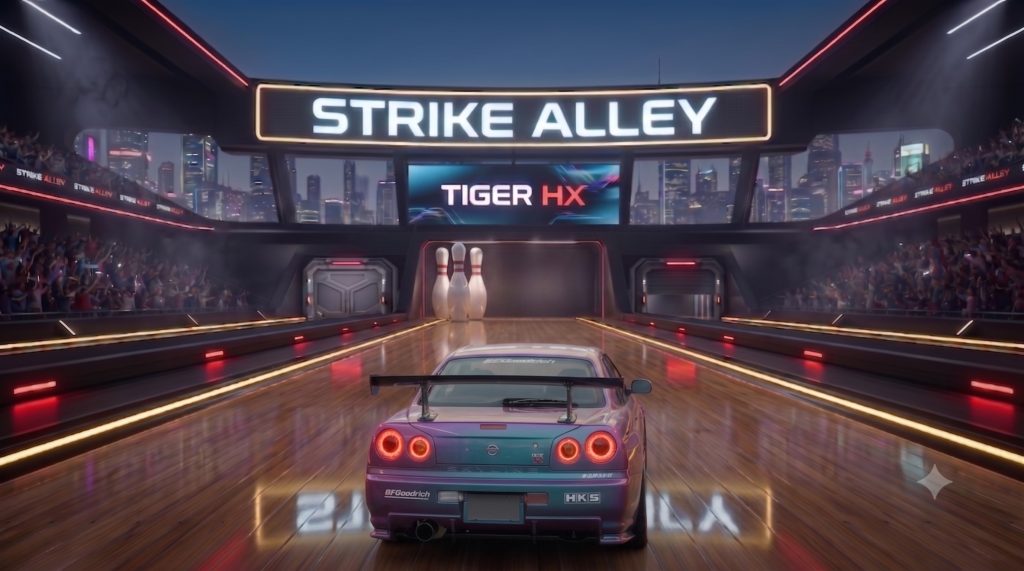
The vehicle reference for this scenario. The same car dropped into the locked stadium scene, ready to animate.
Then I turned these reference images into video. Most shots were generated with Kling 3, which gave me the most reliable motion and physics for a car rolling into a rack of pins. For some shots I used MiniMax, and a few were made with Qwen, depending on which model handled that particular movement better.
A tip from experience: don’t expect one model to win every shot. Run the same reference through two models when a shot isn’t working. Often the second one nails it on the first try.
Once I had the clips, I edited the animation outputs together, and each scene was ready.
Adding a recurring character
Not every shot was just a car. For a few scenes I created a character riding a motorcycle, and he had to look like the same person every time he appeared.
To get there, I started with a character sheet: the rider and his bike from several angles, with a consistent outfit, proportions and style. That sheet became the reference for every scene he was in. From there, I used the same swap as before. I placed the motorcycle reference into the stadium scene in place of the car, generated the shot, and animated it through the same pipeline.
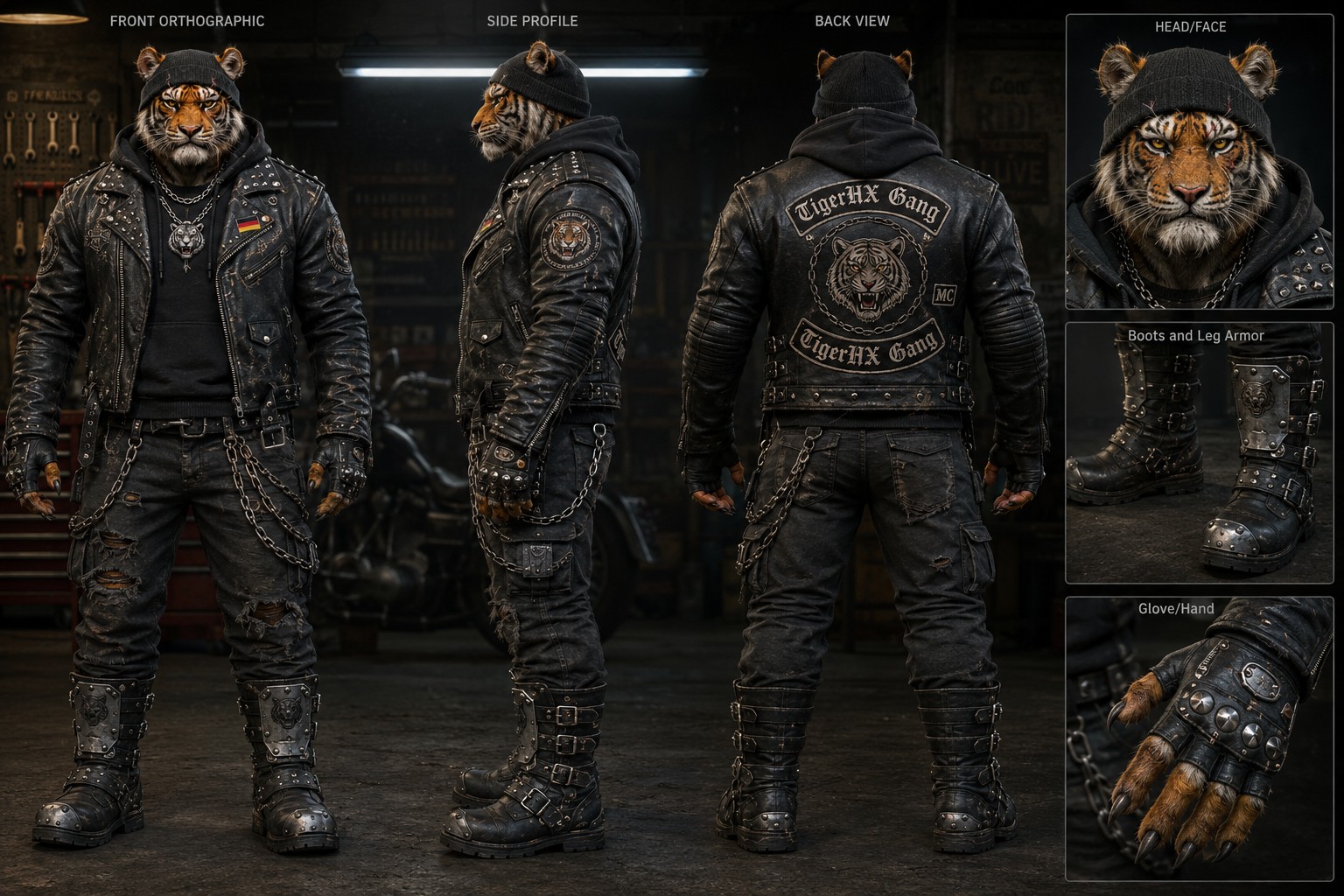
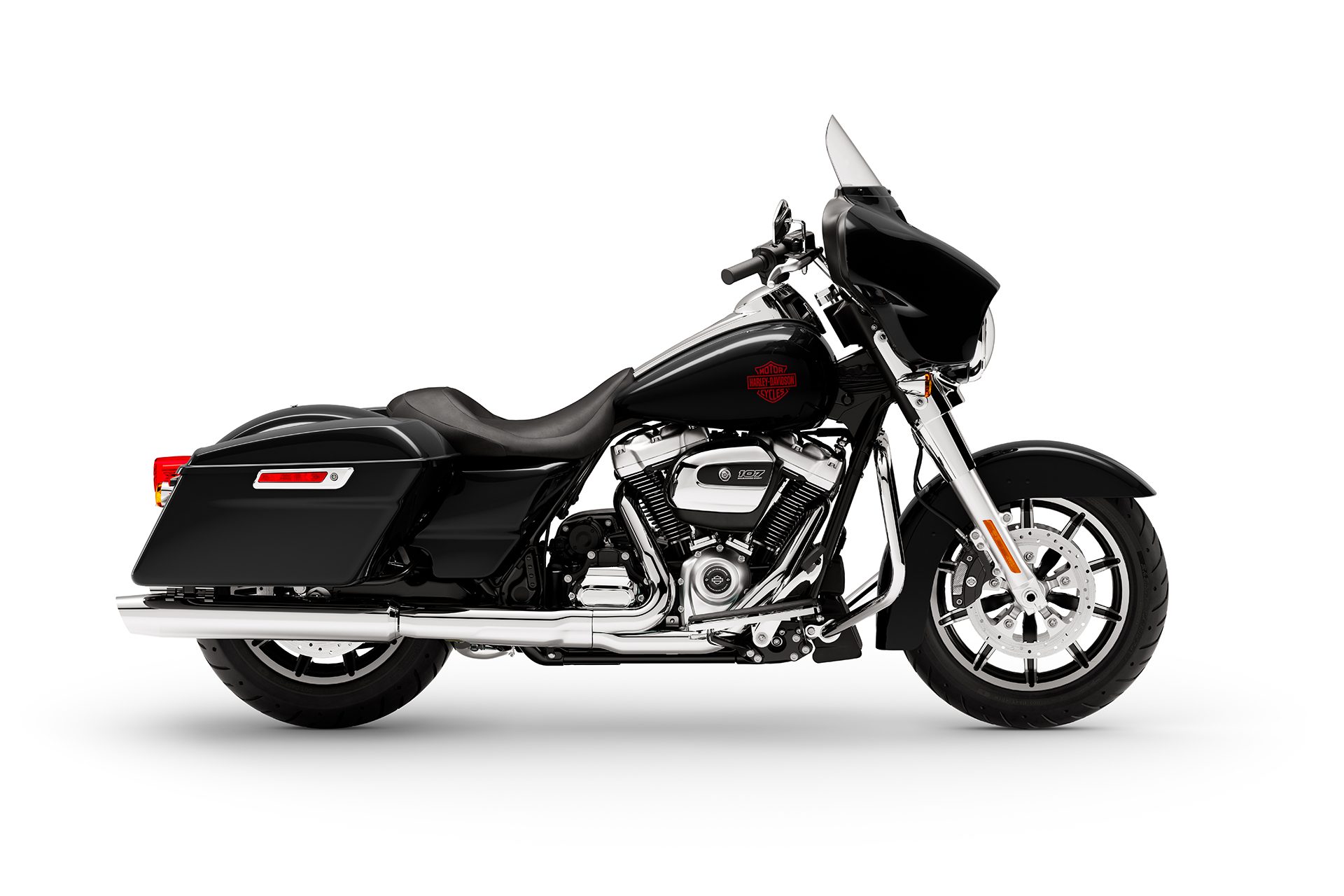
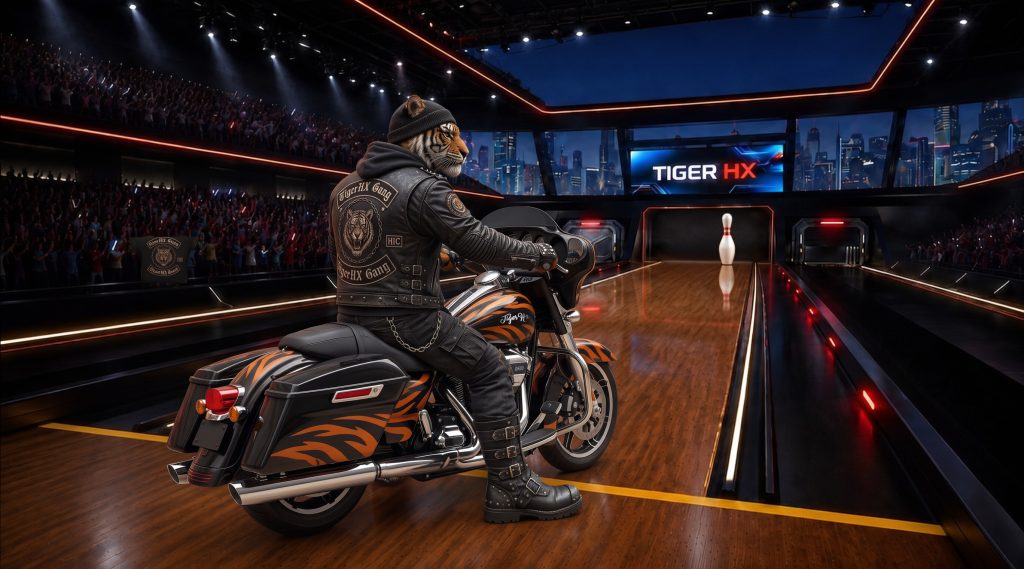
The character sheet: front, side and back views, plus close-ups of the face, boots and gloves. The motorcycle reference that replaced the car in the scene. Character, bike and stadium combined into one reference frame.
The lesson here: AI video models stay consistent only when you give them something consistent to hold on to. A solid character sheet does that job for people, the same way the 3ds Max blockout does it for the set.
Step 4: Animated titles with a green screen trick
This is the part I’m most excited to share, because it solved a problem I couldn’t fix any other way: getting AI to animate my typography instead of inventing its own.
Here’s the workflow:
- Design the title. I designed each on-screen text and its graphic elements in Photoshop and CorelDRAW, exactly as I wanted them to look in the final frame.
- Export on green. I exported the finished title on a solid green background.
- Set the first and last frame. I gave the AI video model two images: a fully green frame as the first frame, and my designed title as the last frame.
- Write the entrance. In the prompt, I described how the title should enter the scene: the animation, the effects, the energy of the move.
The model fills in everything between an empty green screen and my final design. Since the last frame is my own artwork, the type lands pixel perfect. And since everything sits on green, I can key it out later and layer it over any scene.
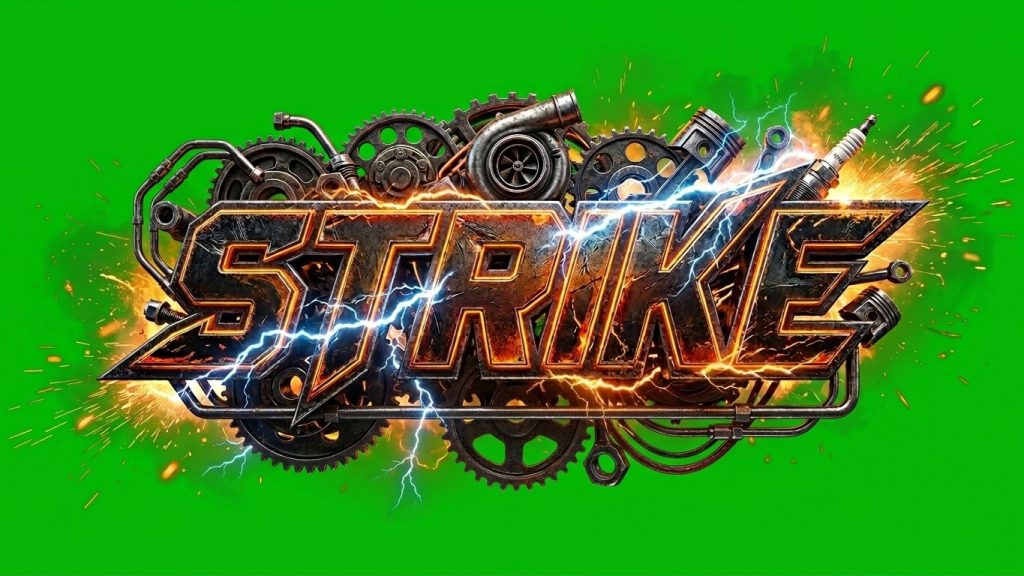
The final frame of a title animation: designed by hand, exported on green, then animated by AI.
Step 5: Put it all together in After Effects
The final stage brought the two streams together: the scene animations and the title animations. In After Effects, I keyed out the green from the titles, placed them over the scene footage and timed each one to the action, so the text hits right as the car reaches the pins.
AI clips from different models and different generations never match perfectly in color. So before export, every sequence went through color correction and a final color grade. This is what makes a collection of AI shots feel like one film instead of a playlist. Once each sequence was graded, I exported the final videos.
What I learned
- Control first, realism second. A rough 3D blockout gives AI a structure it can’t drift away from. That’s the real secret to consistency.
- Use each model for what it does best. Gemini for exploring, GPT-5 for precise references, Kling 3 for motion, with MiniMax and Qwen as backups for tricky shots.
- AI is a layer, not the whole stack. Photoshop, CorelDRAW and After Effects did the work that made the output feel designed, not generated.
- First and last frames are a superpower. If you can design the end state, you can make AI animate toward it. That opens up far more than titles.
AI didn’t replace my design skills on this project. It multiplied them. The 3D gave me control, the AI gave me speed and realism, and the classic design tools gave me the final say.
If you’re working on a campaign, a product video or a brand film and want to explore this kind of 3D and AI pipeline, get in touch. I’d love to hear what you’re building.